What's changed
- Improved speed and stability of the bot
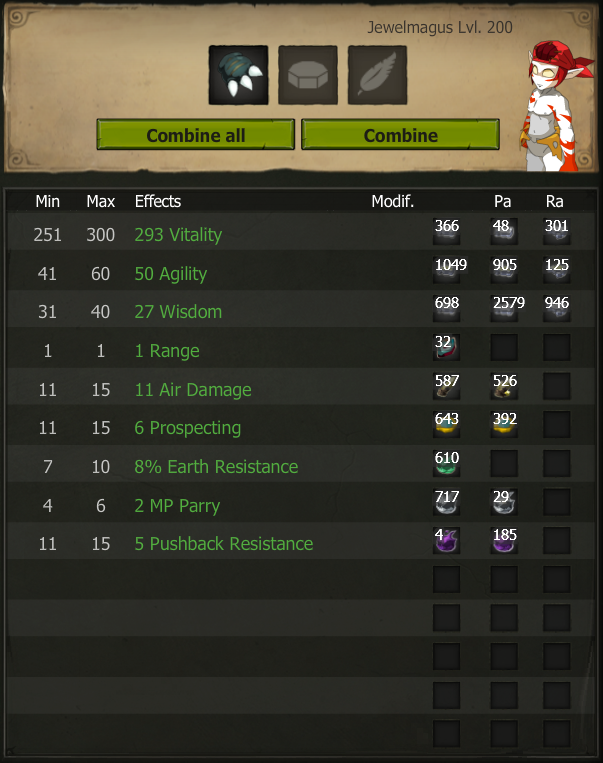
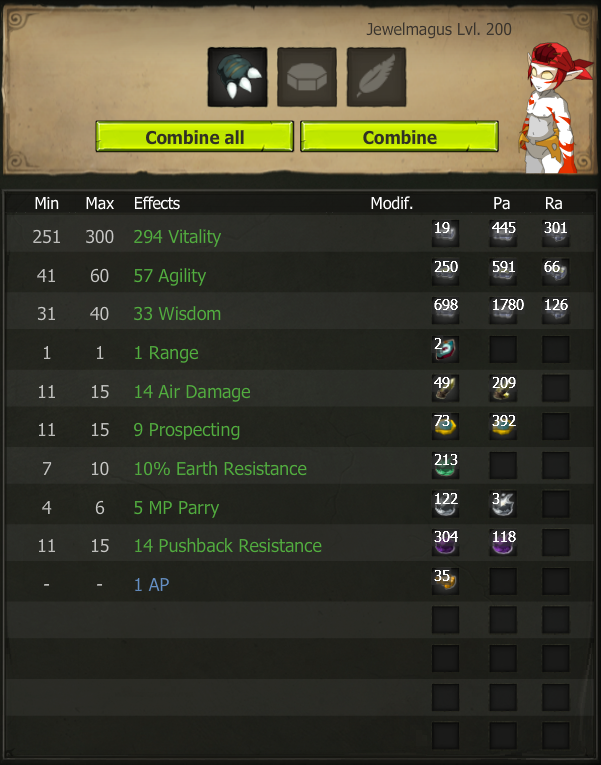
- Improved accuracy of the OCR which collects information about the item you're maging
- Inkybot can run fully in the background again and doesn't take control of your mouse and keyboard, allowing you to use your computer for other tasks while Inkybot is running
What's broken
- Removed the average kamas consumption tracker, due to a change in the Dofus interface
Upcoming
- Fix support for lesser common items, such as some weapons that're not currently supported
- Bring back several safeguards
- Fix cryptocurrency payments
Limitations
Administrator mode
The bot must be run in administrator mode and added as an exception to your Antivirus.
Do not minimize
You can run Inkybot under other applications, however it must not be minimized. This is due to how Windows works: it does not draw windows that are minimized.
Do not run other programs "Fullscreen"
You must not run other applications (notably, games) in exclusive-fullscreen mode!
Make sure you are running them in borderless-fullscreen mode.
Because of how Windows works, it can interfere with Inkybot's operation.
How to use
1. Open Inkybot as administrator and Login
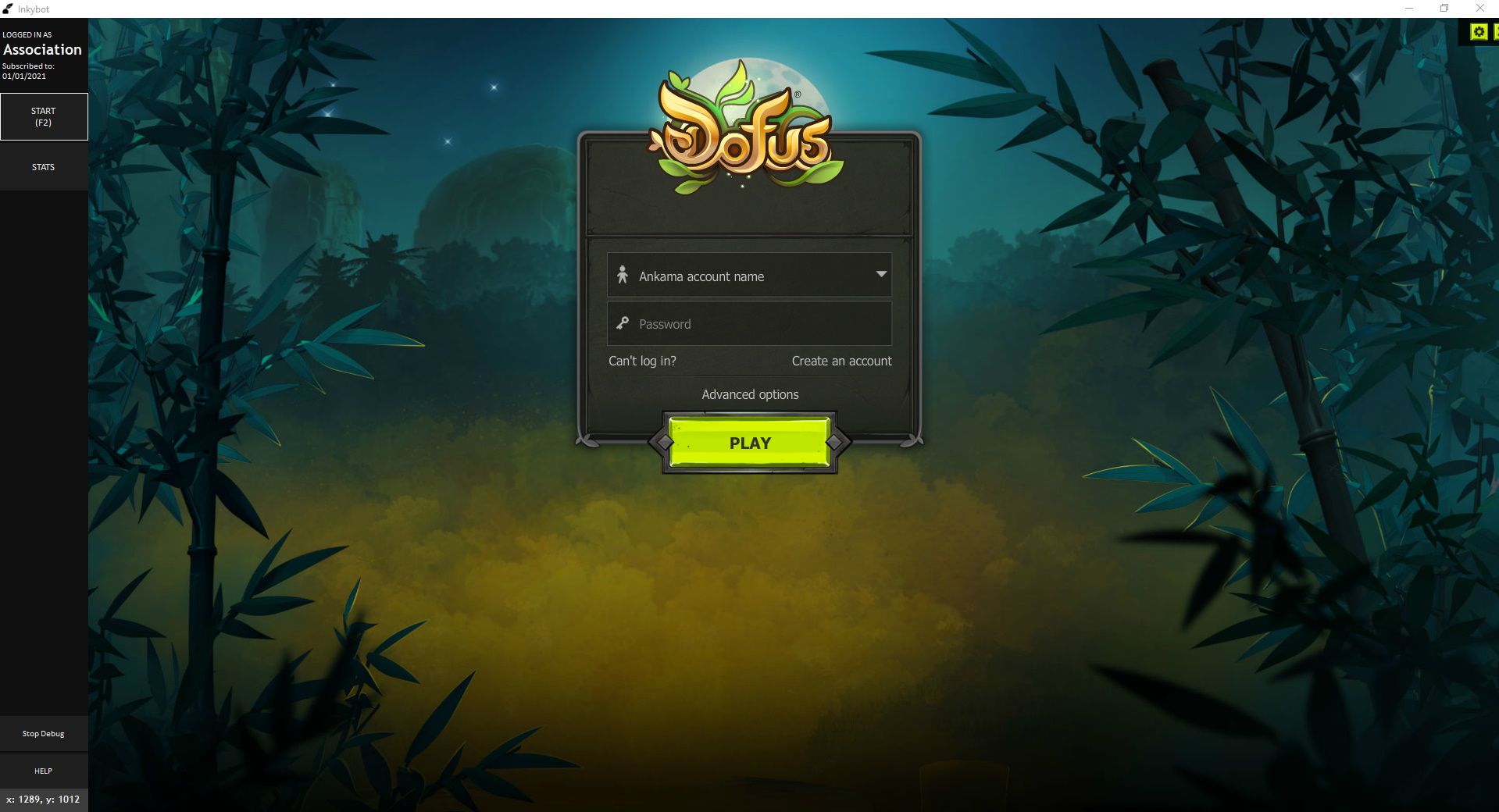
You will need to login to your Inkybot account to gain access to the Dofus client. From there on you can login to your Dofus account as you would normally.
2. Assign the appropriate in-game settings
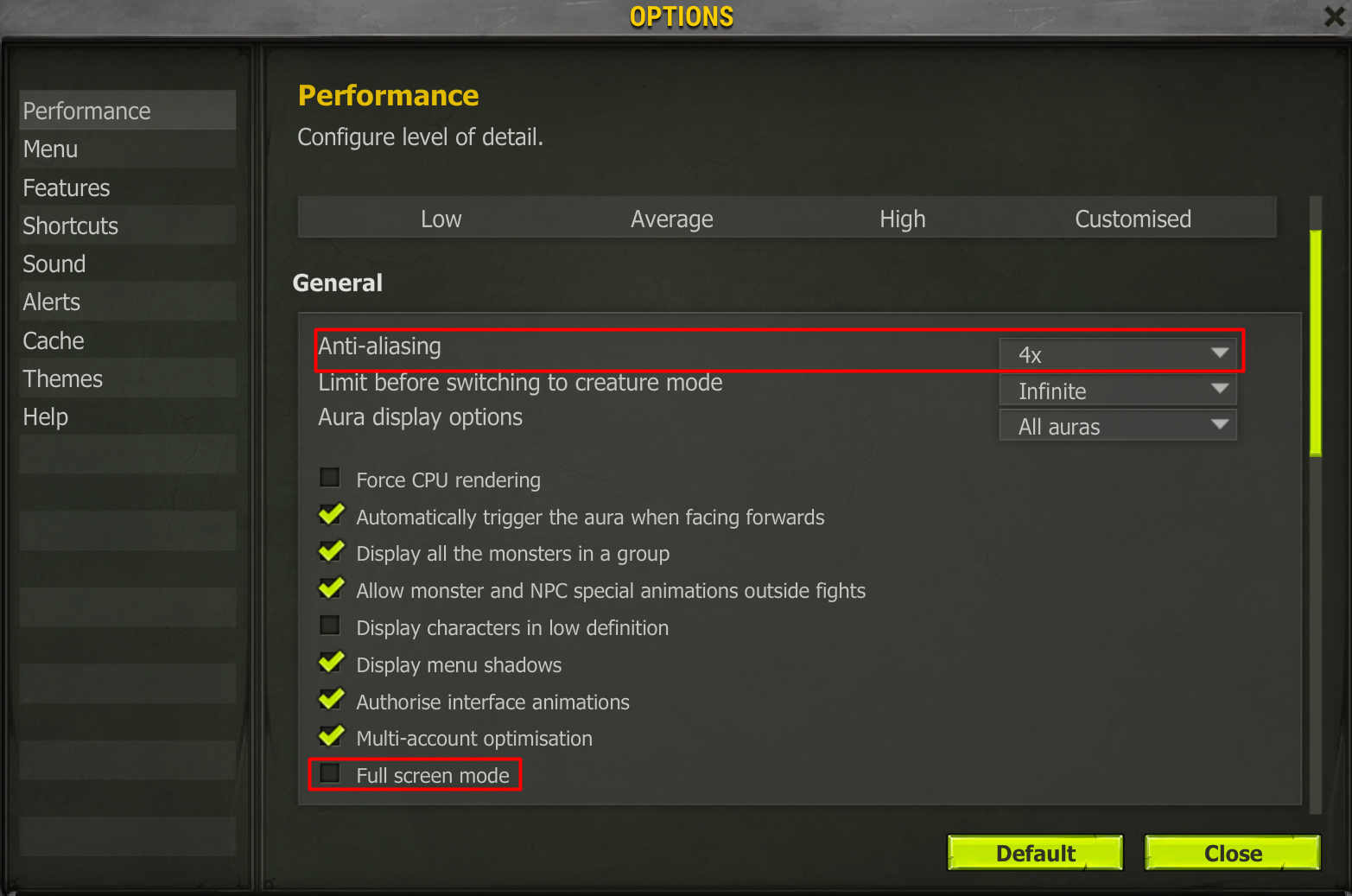
It is essential you put your graphics settings as high as possible, especially anti-aliasing. In general, if you can see the text better, so can Inkybot. Remember, we use OCR to gather in-game information.
Also, make sure you turn off Full screen mode as it will mess up Inkybot's OCR bounds. You may have to restart Inkybot after changing this setting.
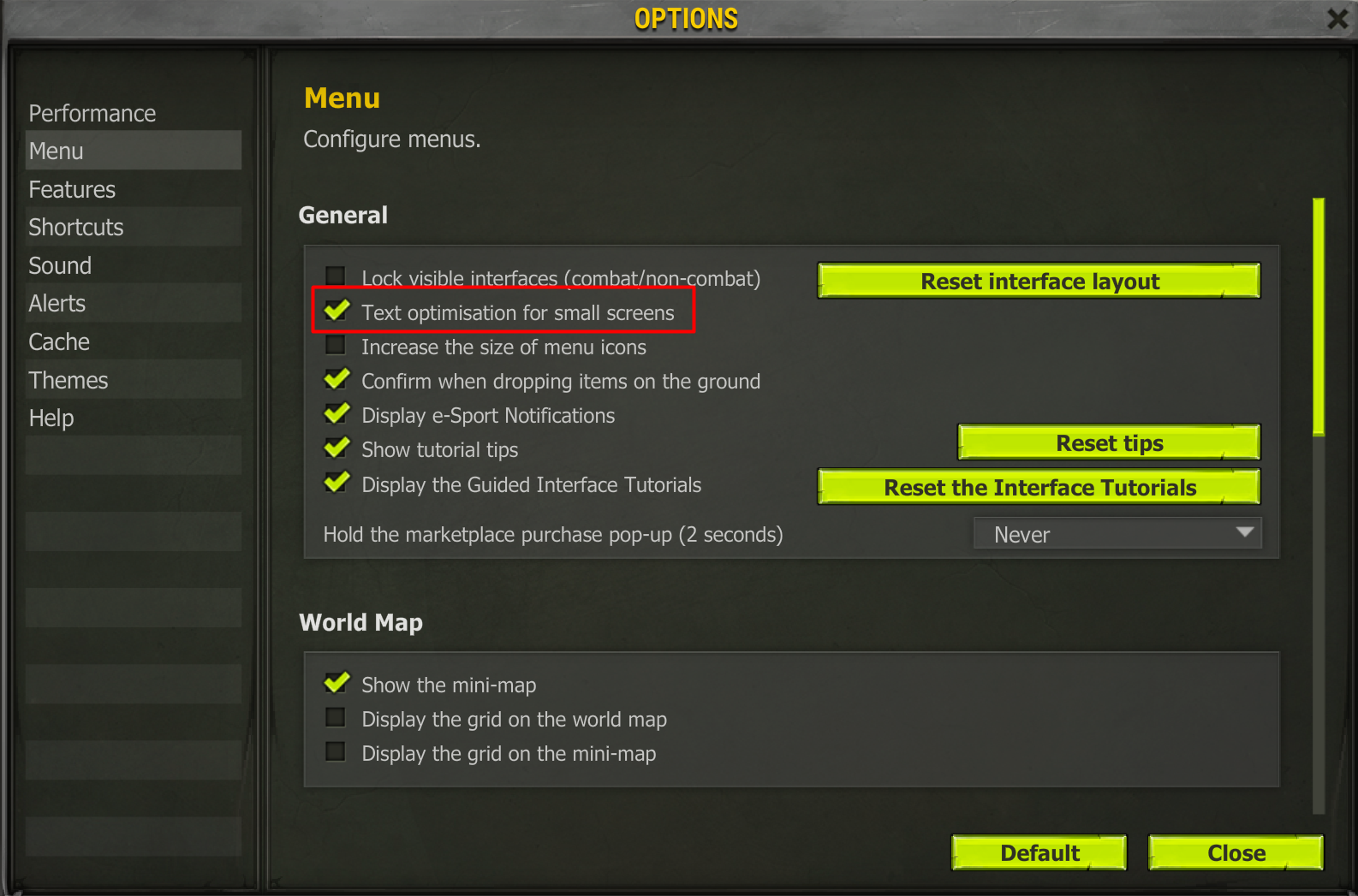
3. Ensure the OCR indicators cover the appropriate bounds
You can view the OCR bounds by pressing the "Debug" button on the sidebar. The OCR bounds adjust according to the window.
We highly recommend you run Inkybot maximized as this will improve OCR results, thus minimizing error.
4. Activate Advanced Mode
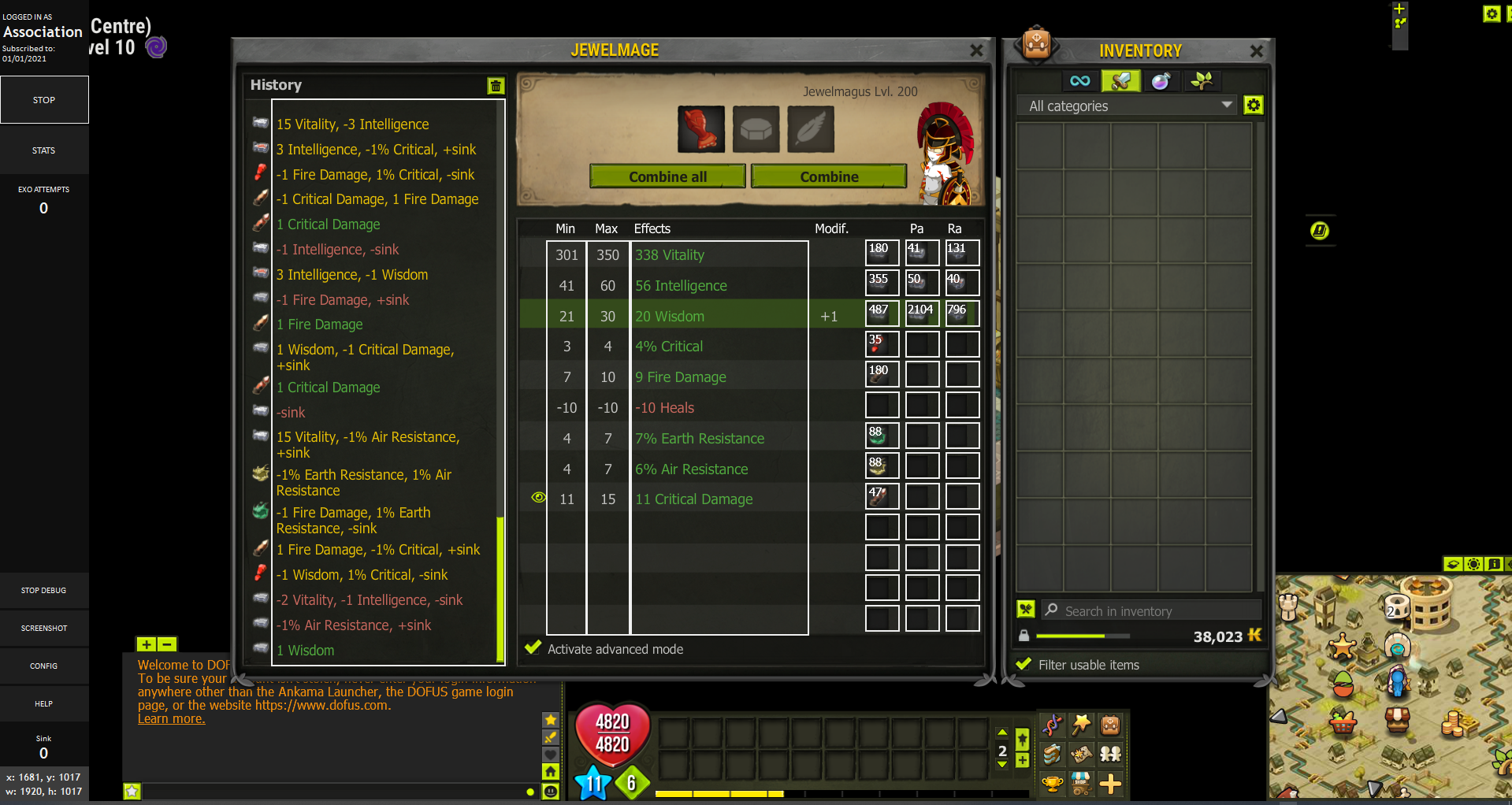
Make sure you enable "Advanced Mode" in-game. You can find this option on the maging table under the item stats.

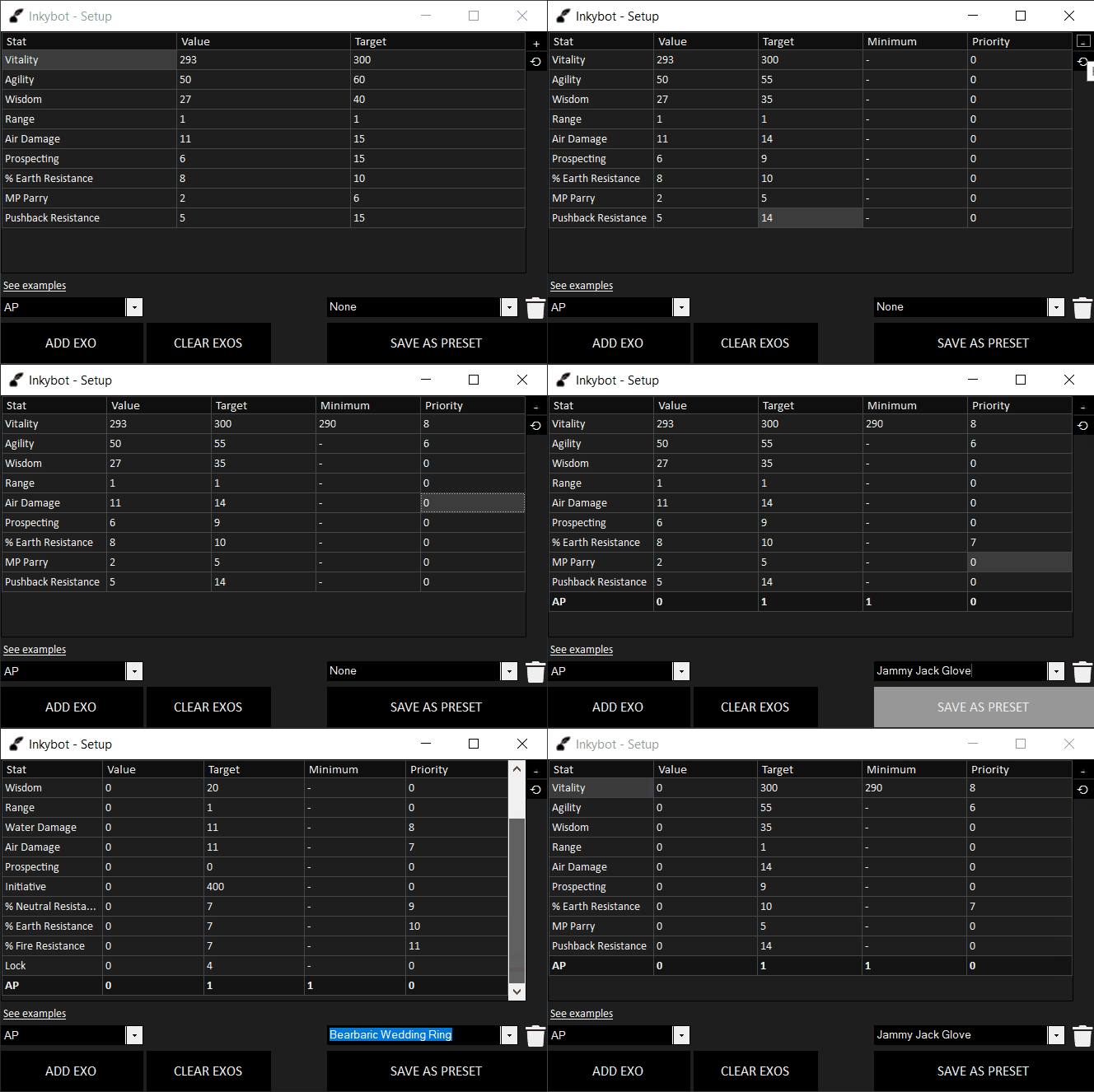
5. Configure your stats and begin maging!
You can access the stats configurator by pressing the "Stats" button on the sidebar. You will know the bot is finished when it removes the item from the maging table. Voilà!